How to Live Stream Your Church Service (and Reach Every Language)
A complete step-by-step guide — from starting your Translation plan and setting up OBS to going live with AI translation, building a searchable sermon archive, and seeing exactly who you reached. No broadcast engineer required.
What the Translation plan includes
One flat monthly price — a typical Sunday is fully covered, no per-service invoice.
Live translation
5 hrs/mo
≈ a month of weekly services, then $39/hr per language
Translated viewers
Up to 100
peak concurrent, included every service
Your plan
$199/mo
+ 5 hrs of back-catalog translation to start
In this guide
- 1Why stream your service online (and in every language)
- 2Step 1: Start your Translation plan
- 3Step 2: Set up your church
- 4Step 3: Set up your weekly service
- 5Step 4: Go live with OBS (free encoder) — or just a webcam
- 6What your congregation sees
- 7Step 5: Watch on your church page — or embed it
- 8Step 6: Build a searchable sermon archive
- 9Step 7: See who you reached
- 10Your first translated service is this Sunday
What you need before you start
- A camera/webcam OR a computer running OBS
- A stable internet upload (a steady 5–10 Mbps handles 720p)
- A card for your Translation plan ($199/mo, cancel anytime)
- One volunteer to run it
- (Optional) Your church website login if you want to embed
Why stream your service online (and in every language)
This Sunday, a grandmother in your third row could hear the sermon in Spanish for the first time — not a summary afterward in the lobby, but the actual words as the pastor says them. A Mandarin-speaking family two rows back hears it too. A homebound member watches from her kitchen. And the person who makes that happen isn't a broadcast engineer — it's you, the volunteer who got handed the AV laptop and a lot of faith.
- Multilingual members worship in their own language, live — not in their head
- Homebound, remote, and traveling members stay included every week
- Multi-campus churches share one feed without a second production
- Every service is saved automatically as an on-demand sermon
Nobody should have to translate the gospel in their own head while they're trying to worship — this just lets them be present.
If you can join a Zoom call and share your screen, you can do every step below. We'll go slow.
Step 1: Start your Translation plan
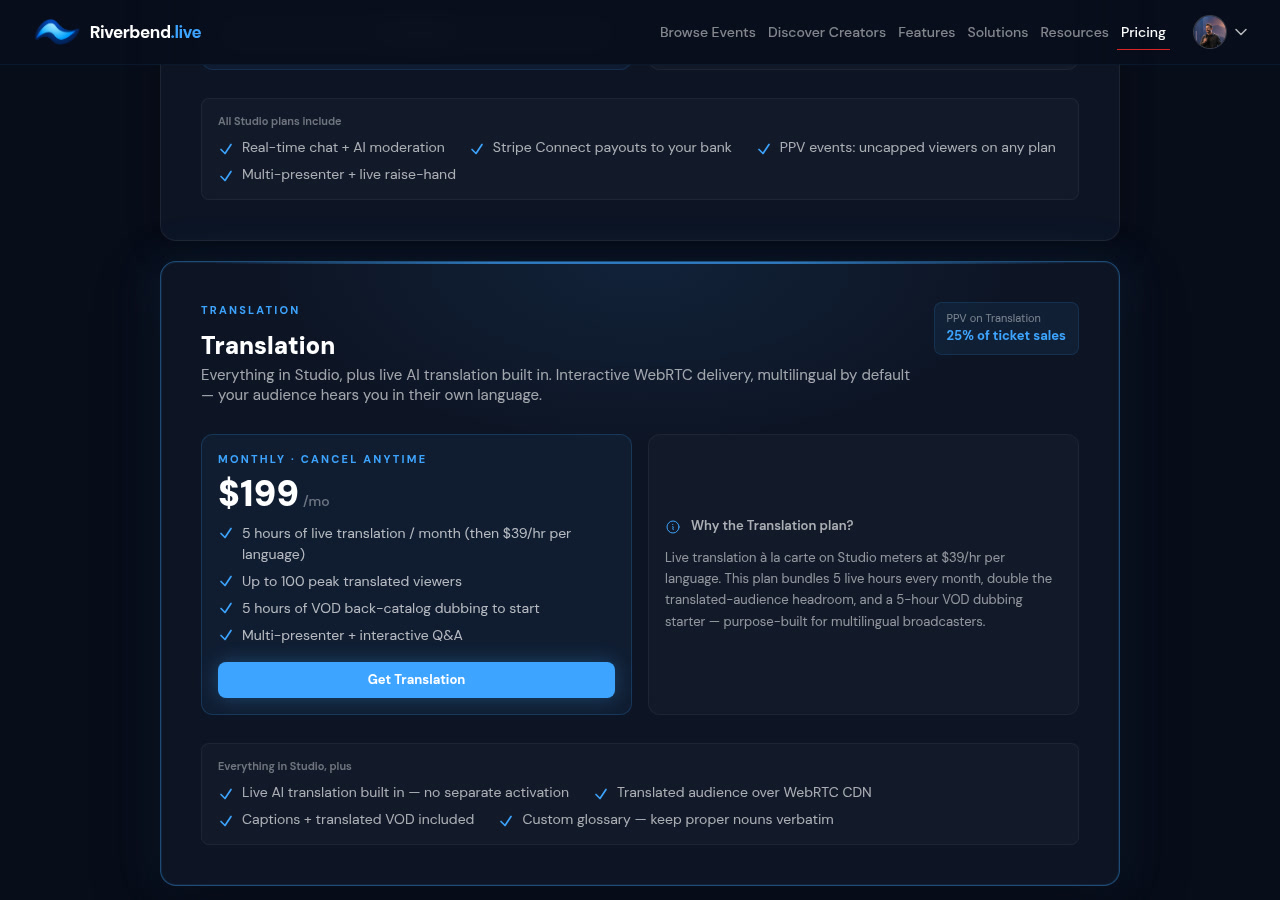
Go to riverbend.live/pricing and click Get Translation ($199/mo). The Translation plan is built for churches: it's the interactive Studio stack with live AI translation included — 5 hours of translation a month (about a month of weekly services), up to 100 translated viewers, and 5 hours of back-catalog translation to start. (There's also a plain Studio plan if you want interactivity without translation, and a free Broadcast plan for one-language streaming.)
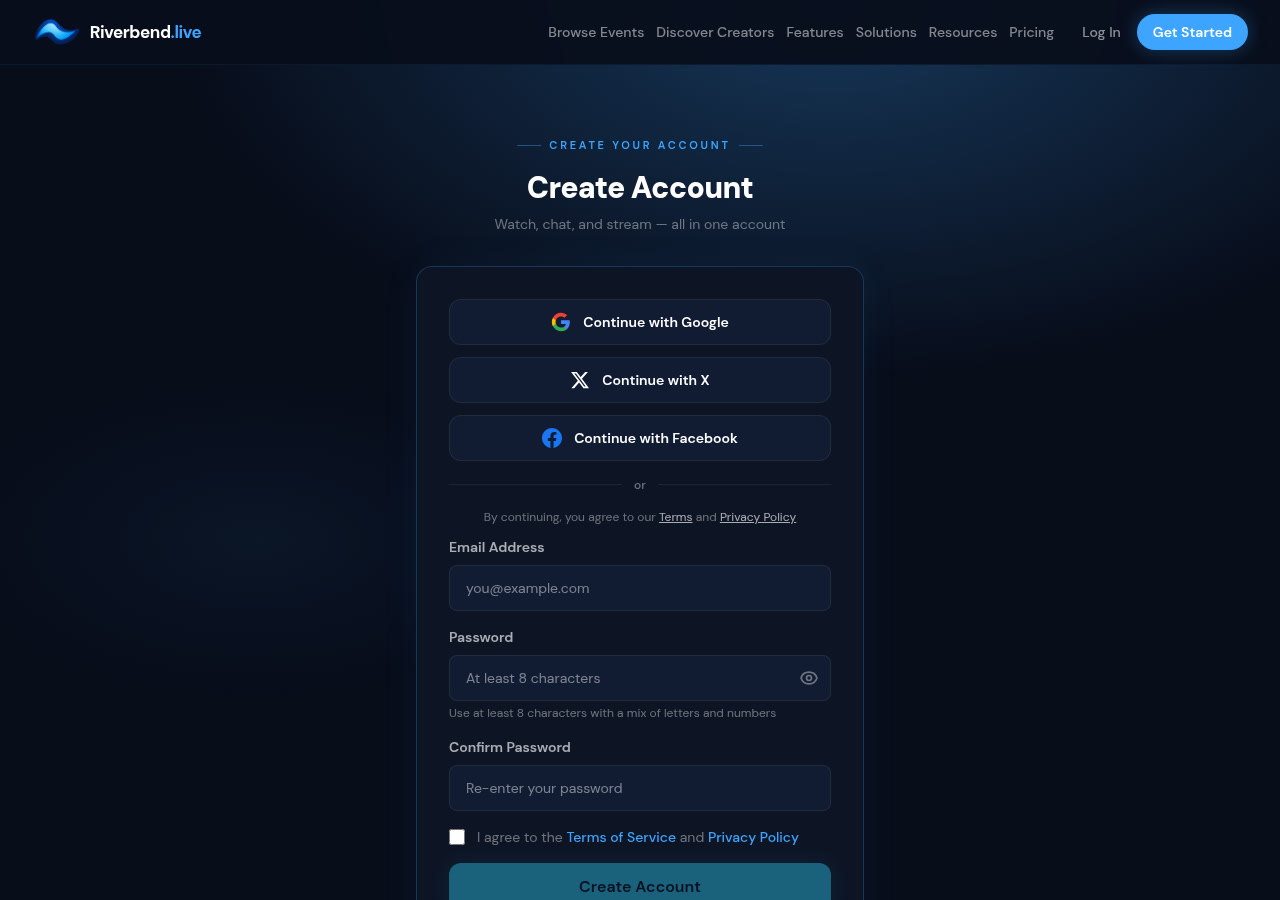
No account yet? You'll create one right here as part of checkout — email and a password, or one tap with Google, X, or Facebook. No separate signup detour.
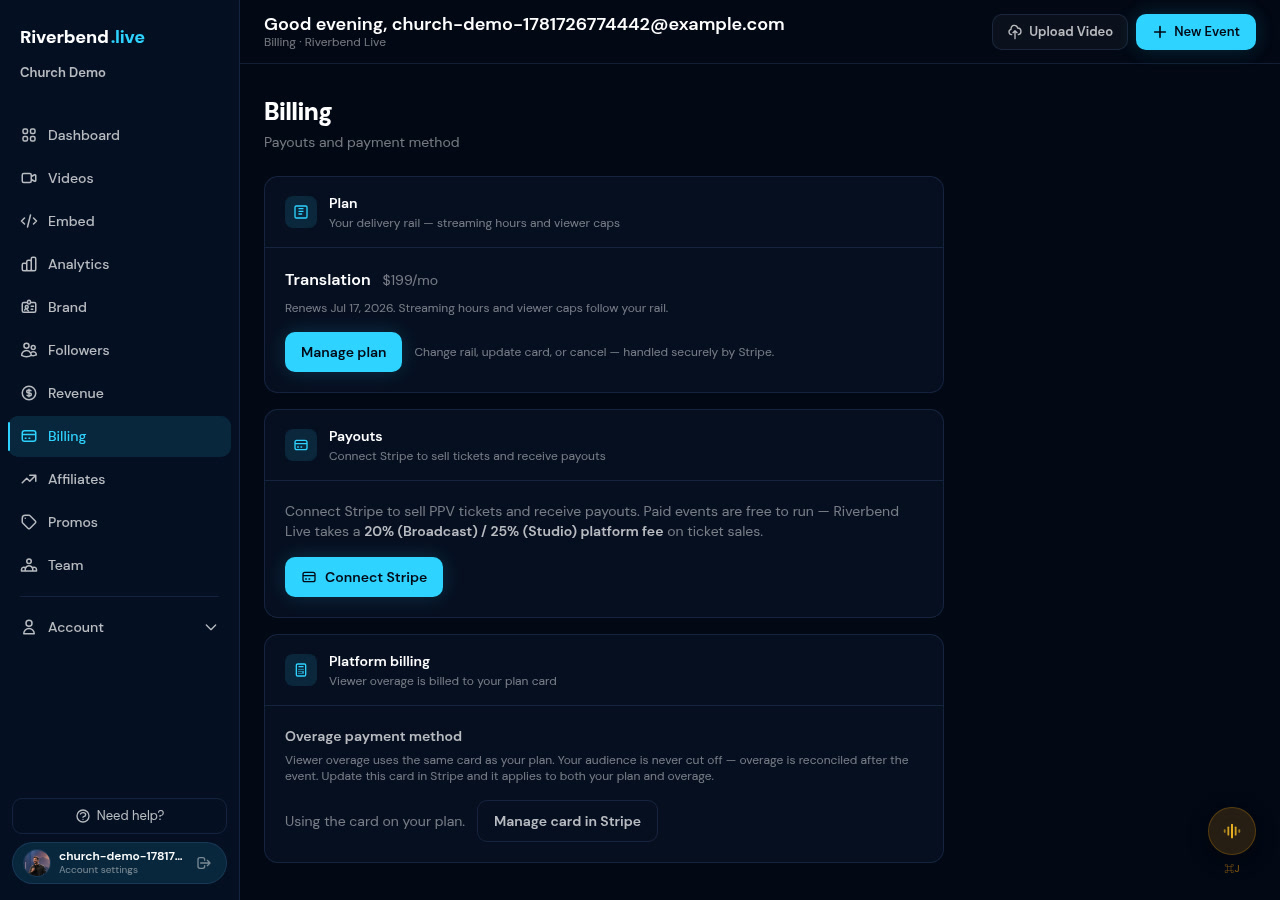
Finish the Stripe checkout and you're on the Translation plan. Your organizer dashboard activates automatically — there's no separate “become a creator” step, and live translation is already on. Just pick your destination language and it runs when you go live; your 5 included hours cover a typical month, then it's $39/hr per language.
Step 2: Set up your church
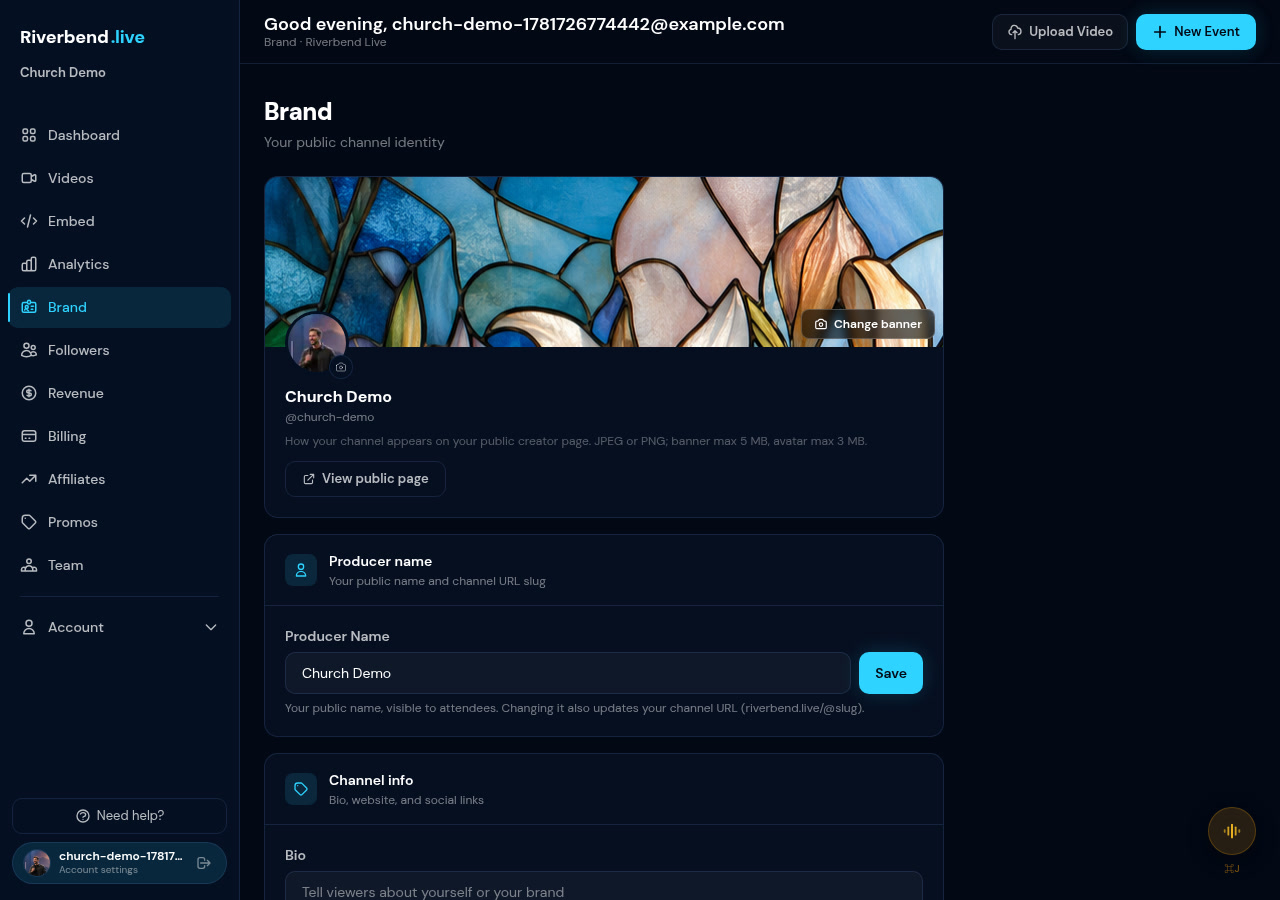
In your dashboard, open the Brand tab and fill in your church name, logo, banner image, short bio, website, and social links. There's also an AI Assistant Context field — a plain-text description of your church that the platform uses to personalize responses.
Step 3: Set up your weekly service
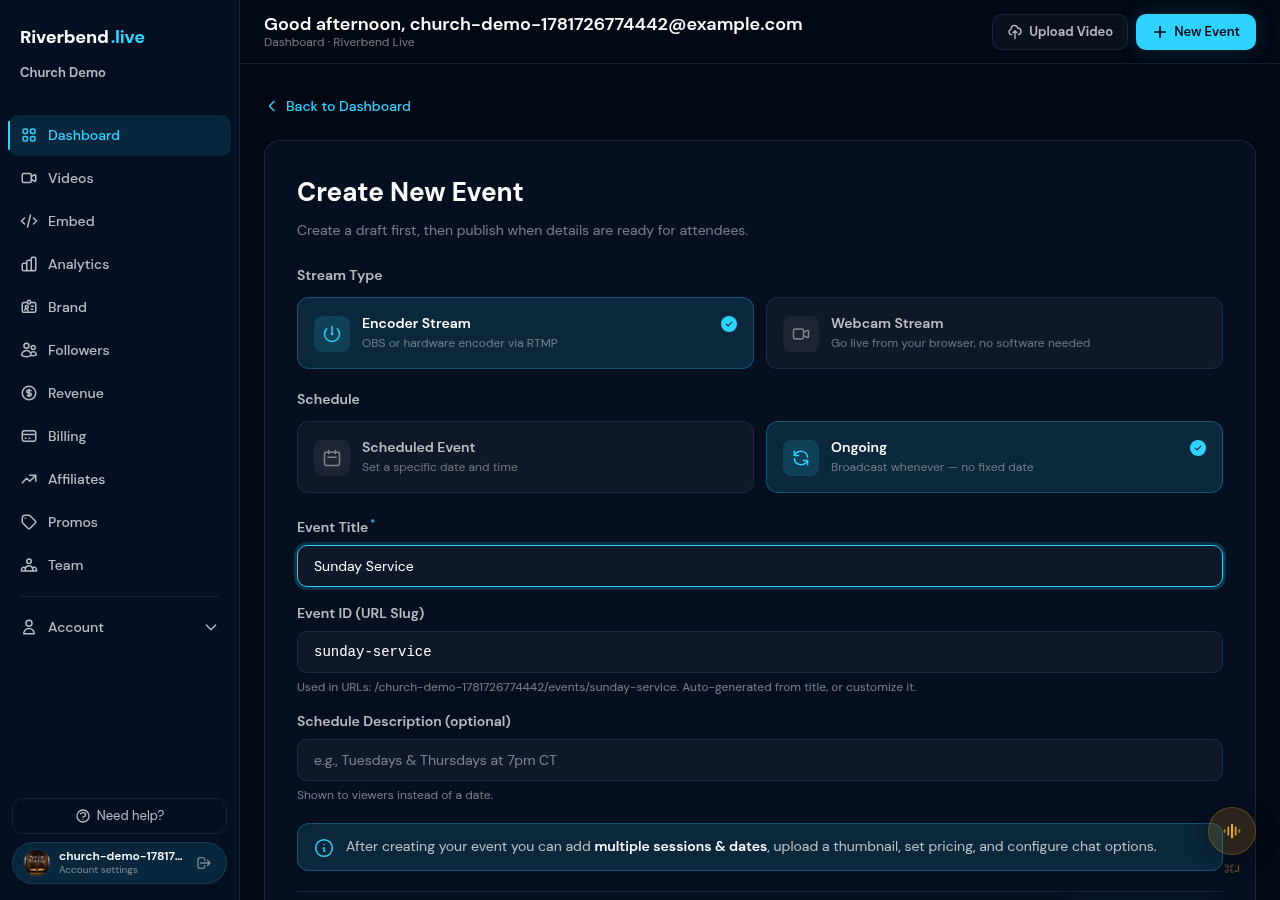
Here's an honest note: the platform doesn't auto-generate a new event every Sunday. Instead, create one event and reuse it every week. Choose schedule type Ongoing, then put your service times in the Schedule Description field (for example, “Sundays at 10:00 AM”) — that text shows to your congregation on the event page.
This gives your church a single stable viewer link, perfect for printing in a bulletin or sharing in a WhatsApp group. Your sermon archive builds in the Videos library (covered in Step 6).
Step 4: Go live with OBS (free encoder) — or just a webcam
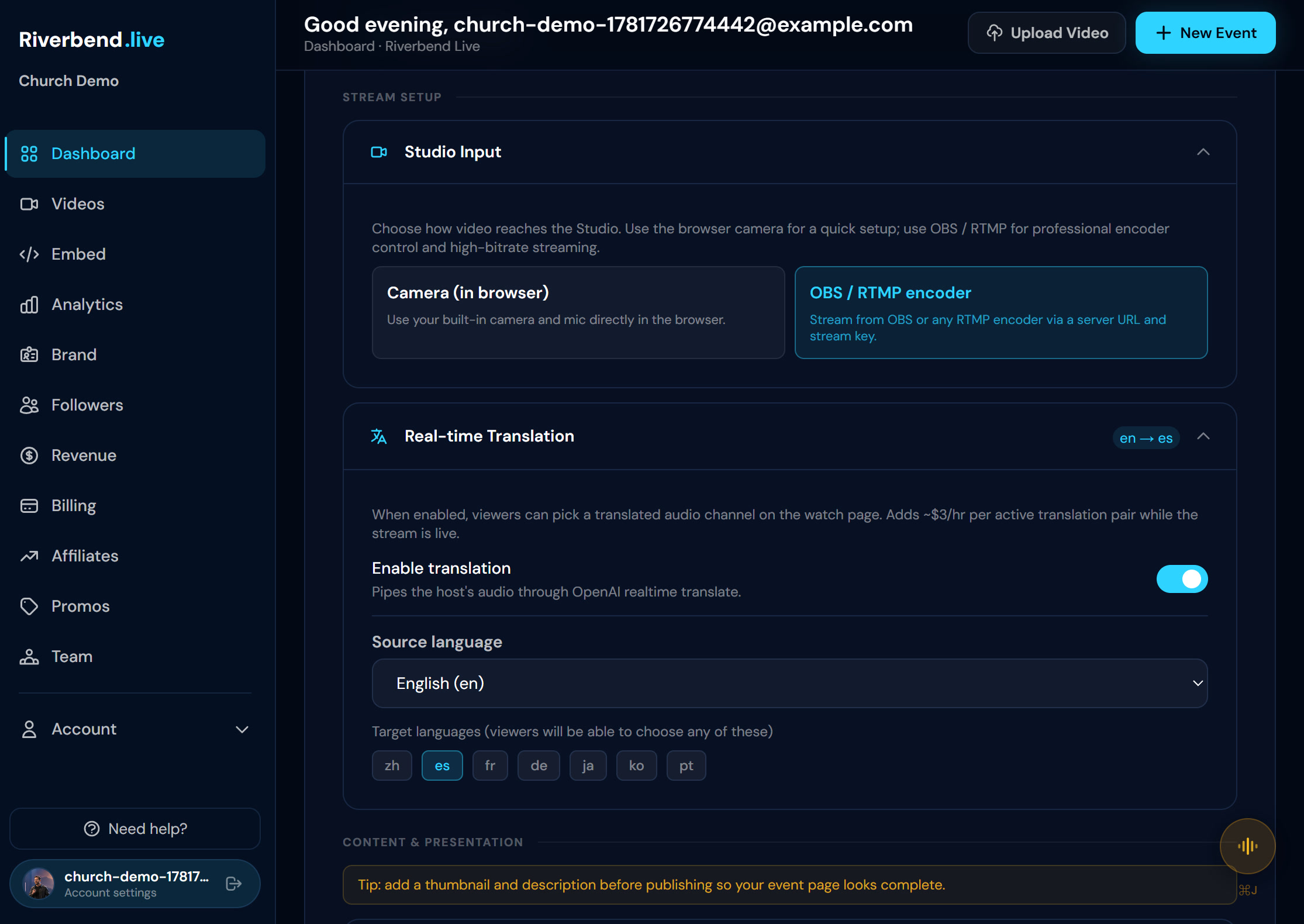
In your event settings, set the video source to OBS/RTMP and enable Translation. Set the source language to English and pick your target languages (Spanish, Mandarin, or any others your congregation speaks).
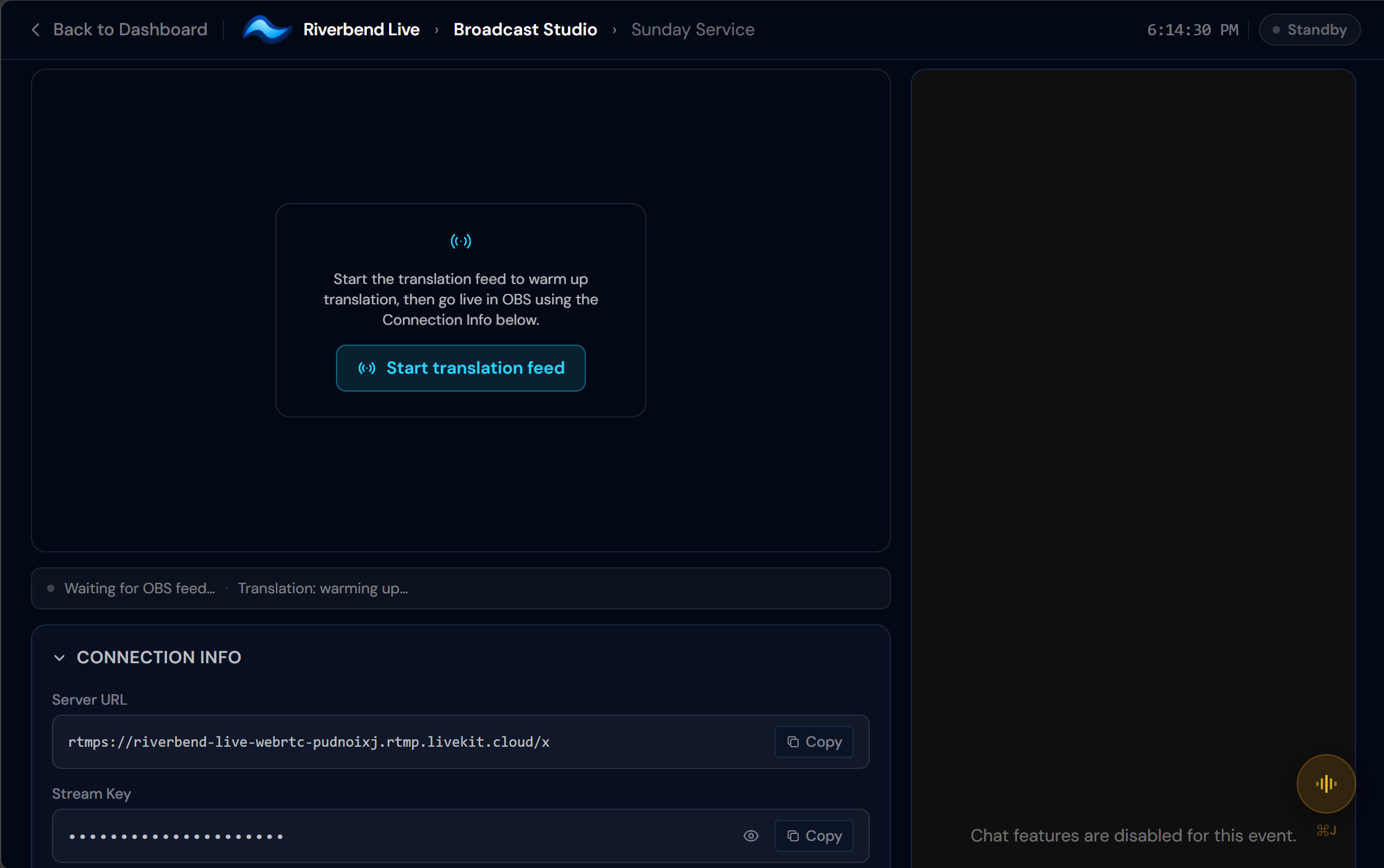
On the publish page you'll see a Server URL and a Stream Key — think of them as the address and key to your church's private broadcast door. Paste them once into OBS and you'll never need to type them again.
In OBS, first build your Scene with the Sources your service needs — your camera, and optionally slides, lyrics, or a lower-third with the sermon title. Then open Settings → Stream → Service: Custom and paste both values.
Under Settings → Output, a video bitrate of 2–3 Mbps at 720p is the sweet spot, with audio at AAC 128 kbps (clean voice, usually the default). Your viewers receive your feed directly — there's no per-viewer transcoding — so 2–3 Mbps at 720p looks great without wasting your upload or your congregation's bandwidth. Pushing 1080p or higher just costs more for no visible gain.
When you click Start translation feed on the publish page, it can take 20–30 seconds to switch to live. That pause is normal — don't click anything. Then hit Start Streaming in OBS. The stream auto-records from the moment you go live.
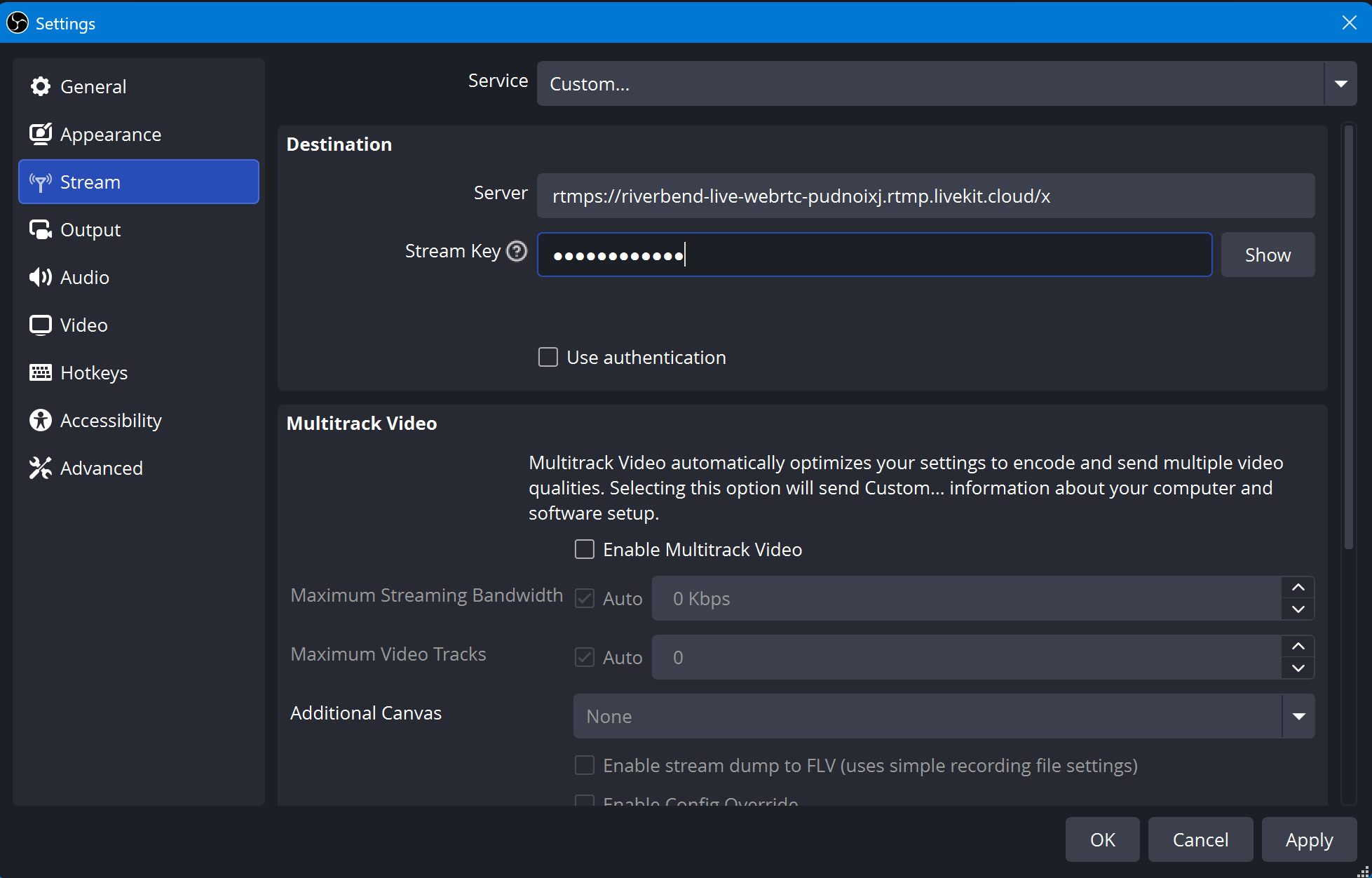
No OBS? Set the video source to Webcam instead and go live directly from your browser — same translation, no software to install. Live translation runs the same on both paths.
What your congregation sees
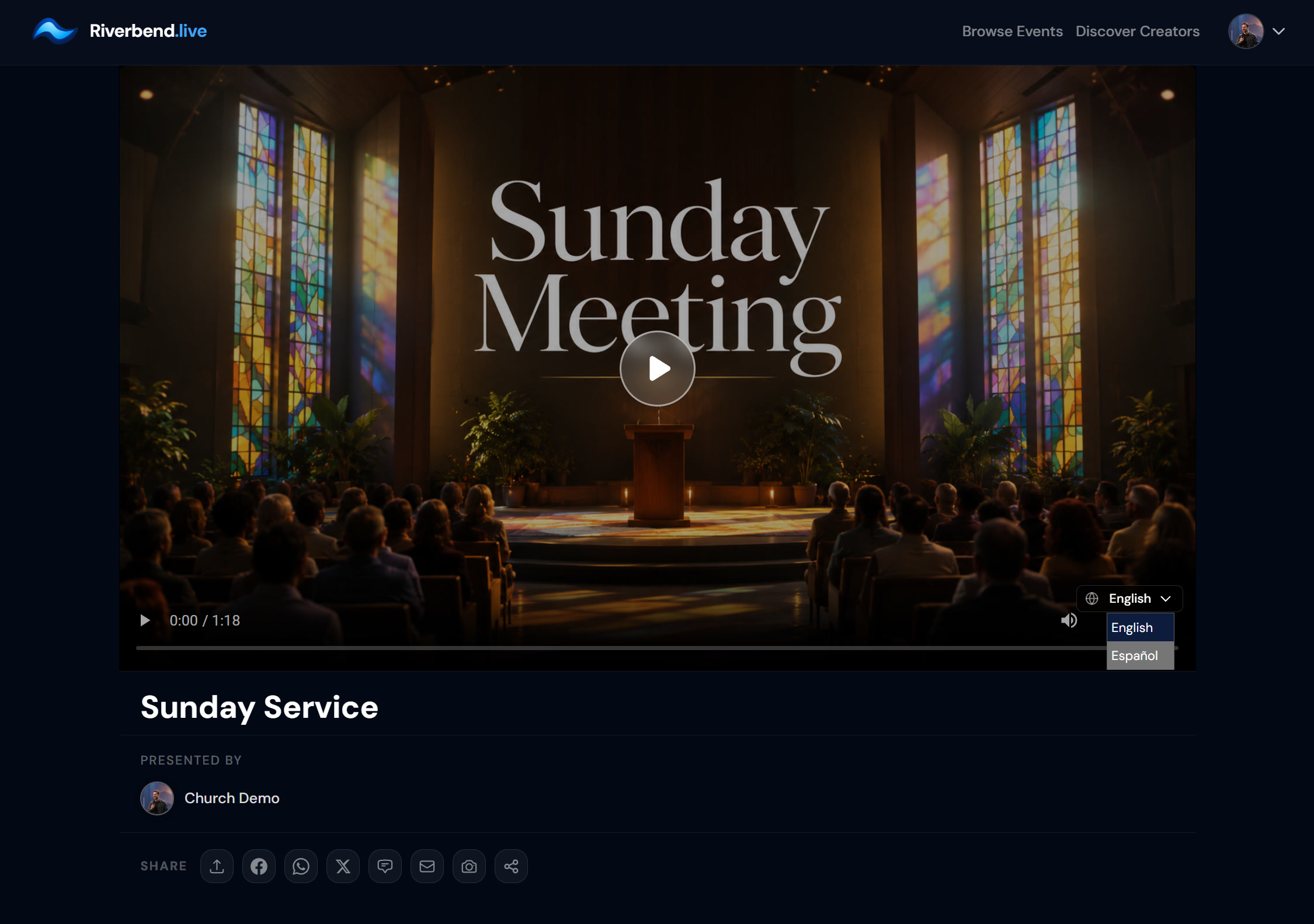
Your members open the viewer link and see a clean player with a language picker. The original audio is always there; each translated language is its own audio track; captions are included in every language. No app to download, no account required — just open the link and pick a language.
📷 Frame — viewer player, language picker open, captions visible
Step 5: Watch on your church page — or embed it on your own website
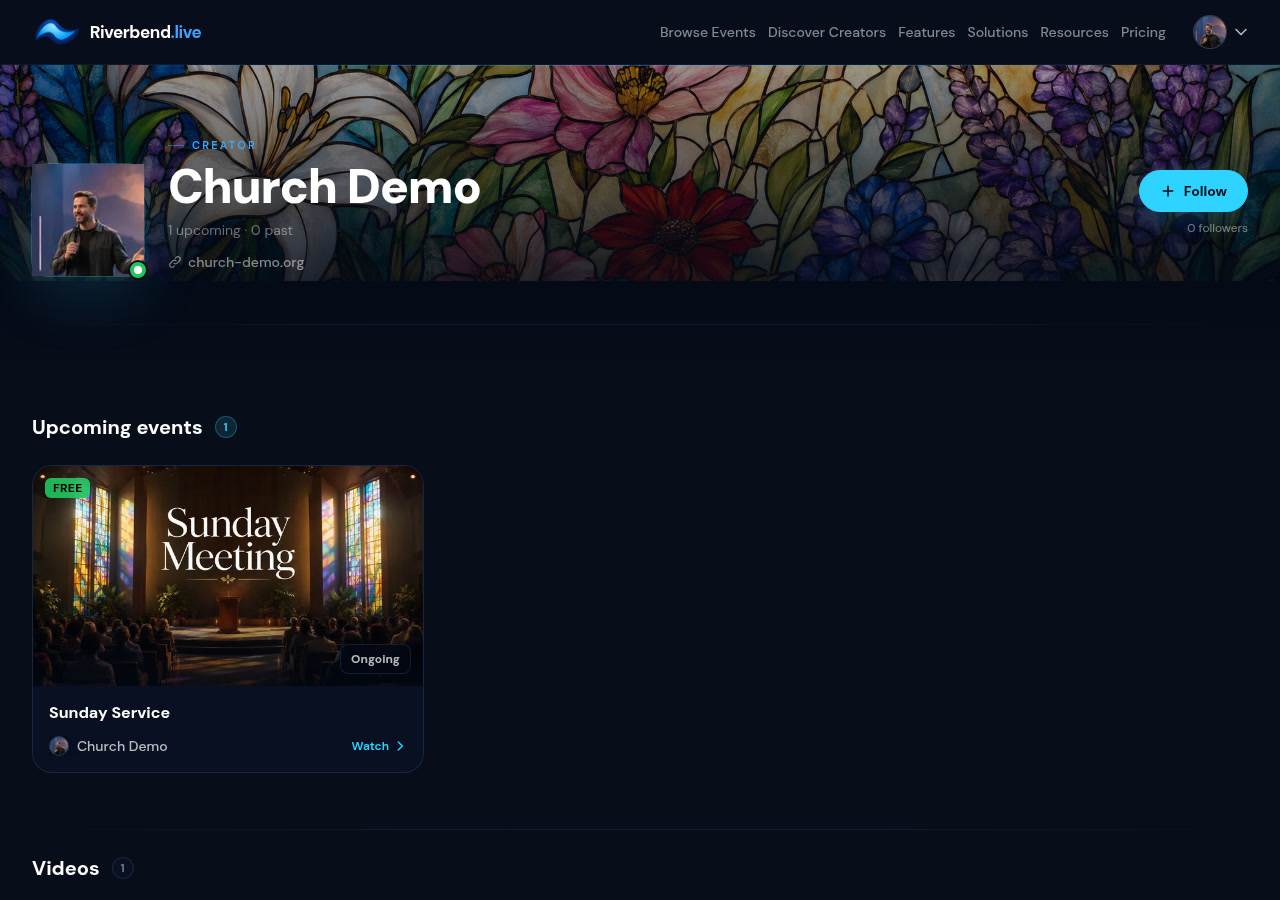
Model 1 — hosted on Riverbend: Your congregation visits riverbend.live/@yourchurch. When you're live, the service appears as a highlighted card with a LIVE badge; they click to watch. Your video library appears below.
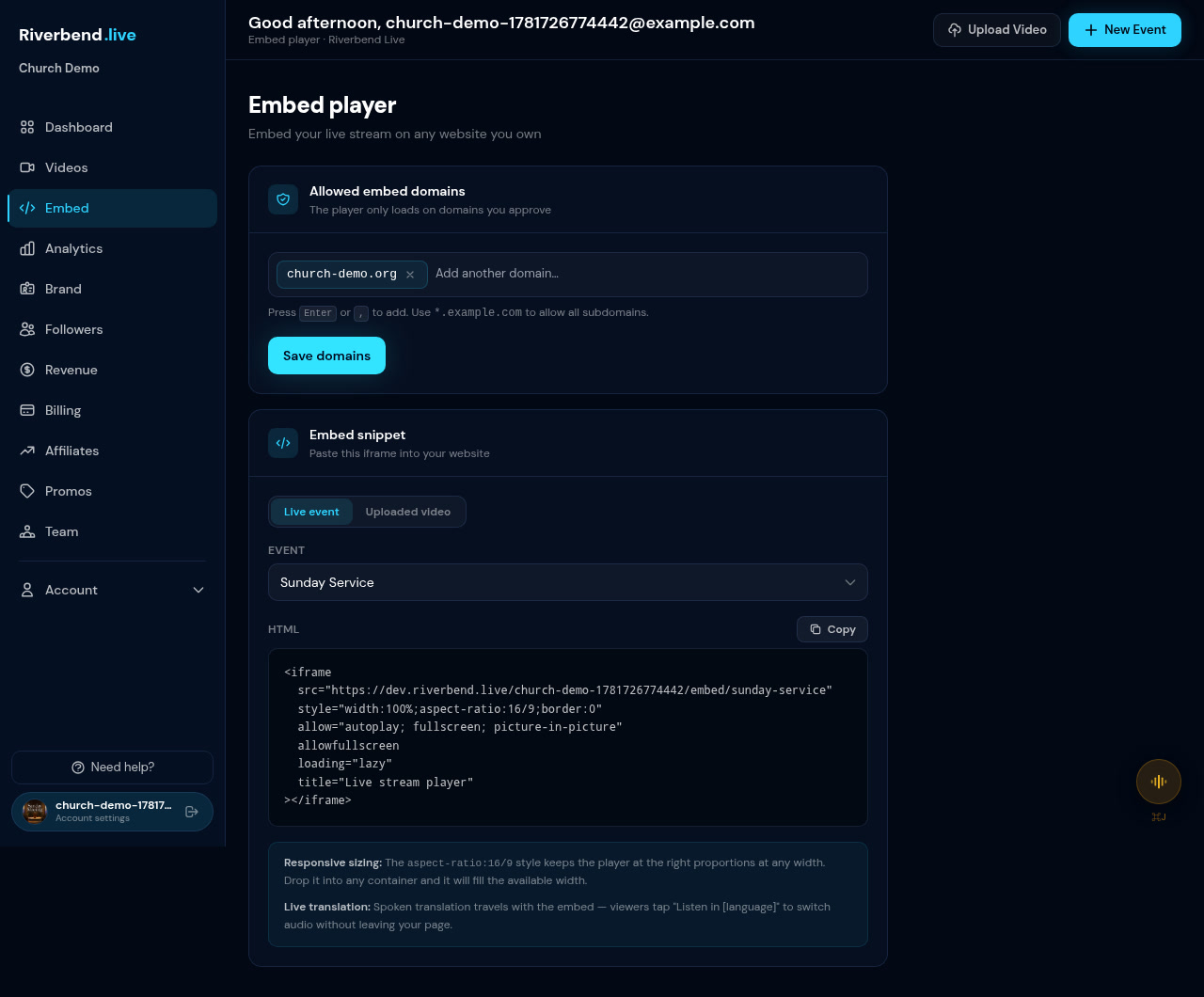
Model 2 — embed on your church website: Open the Embed tab, add your church website domain to the allowlist, and copy the iframe snippet — there's one for your live event and one for each individual video. Paste it into Squarespace, WordPress, or Wix. The translation player works inside the embed exactly as it does on Riverbend.
Step 6: Build a searchable sermon archive (and translate your back catalog)
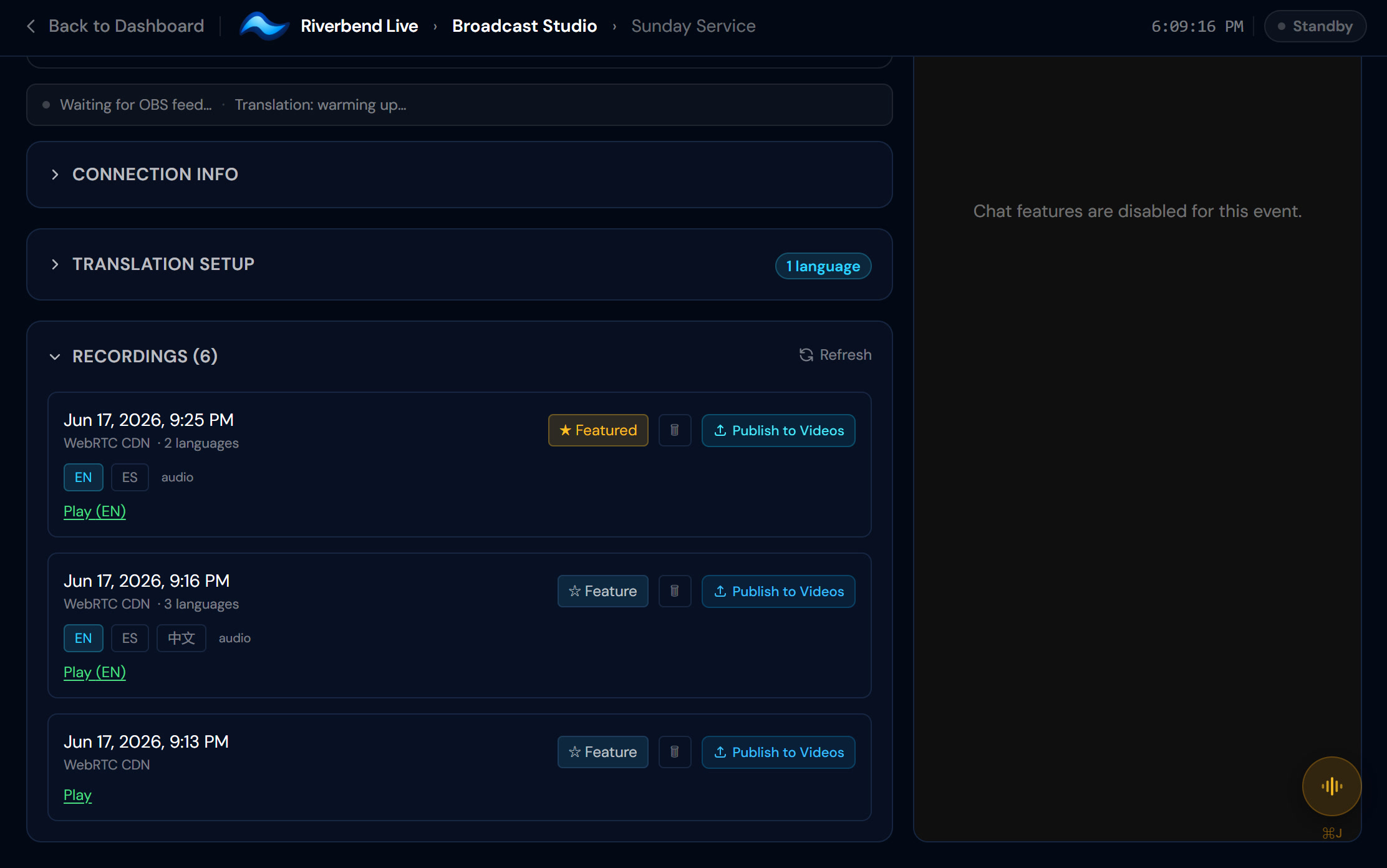
Every service records automatically. To make a recording permanent in your Videos library, publish it — it carries the live-translation tracks automatically, at no extra charge. No re-translation, no manual upload. Sunday's sermon is in the archive by Monday morning.
For older sermons: upload the MP4 directly on the Videos page and translate it into any language at $0/min per language. A 40-minute sermon into Spanish costs about $16. Languages available for translation include Spanish, Mandarin, French, German, Portuguese, Japanese, Korean, Arabic, Hindi, Italian, and Russian.
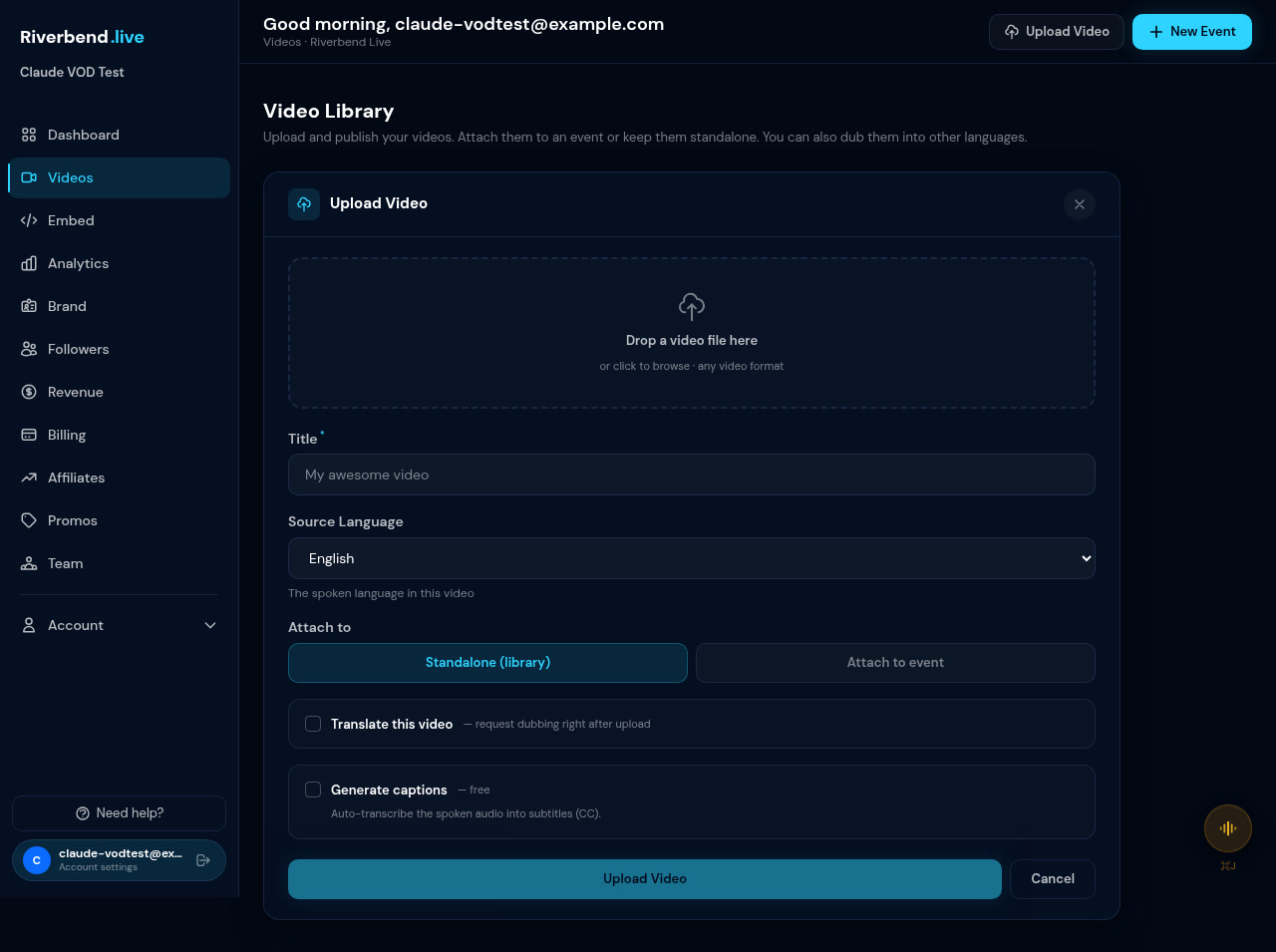
Each video in your library can also be embedded on your church website with the same iframe snippet from the Embed tab.
Step 7: See who you reached
Your Analytics tab shows approximately how many people watched live (close estimates, not turnstile counts), how many in each language, peak concurrent viewers (exact on your interactive stream), replay views and watch-minutes, and how many came from your church website via embed attribution. A few viewers may show as “Unknown site” when a browser hides the referrer — that's normal behavior, not a gap in coverage.
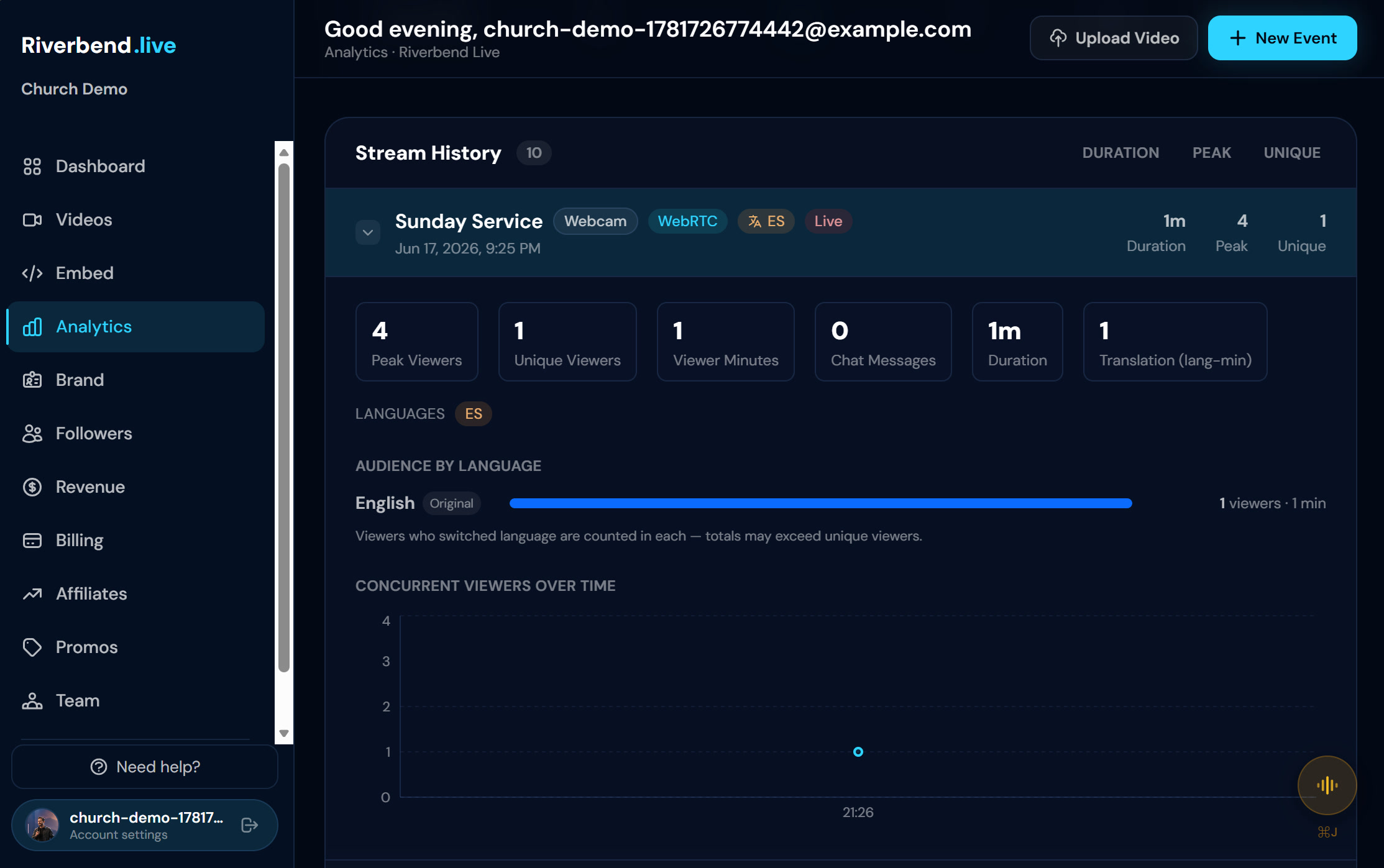
Estimates, not exact science — but enough to know that last Sunday, 35 people followed along in Spanish. That's 35 reasons to keep going.
Your first translated service is this Sunday
Here's the whole path in one place:
Start your Translation plan ($199/mo) on the pricing page — create your account in checkout
Set up your church on the Brand tab
Create one ongoing event — reuse the same link every week
Go live from OBS or your webcam — translation starts automatically
Translate your back catalog — 5 hours included to start
Don't wait for the perfect setup or a bigger volunteer team. Start your Studio plan today, set up one weekly event, and let this Sunday be the first time everyone in your church hears the Word in their own language. The grandmother in the third row is already in her seat.
Frequently asked questions
Do we need special equipment, or can a volunteer run it?
A volunteer can run it. If you already use OBS, it's paste-and-go; if not, use the Webcam source and go live from a browser — no broadcast gear.
Do our members need an account to watch?
No. They open the link and pick their language; no signup, no app.
What internet speed do we need?
A stable upload of about 5–10 Mbps comfortably handles a 720p stream. Wired is better than Wi-Fi if you can.
How accurate is the AI translation?
It's AI-powered and genuinely good — easily good enough to follow a sermon and feel included. Like any translation it's an aid, not a replacement for a human interpreter on the highest-stakes moments; most churches find it exactly right for Sunday. Clean audio (AAC 128 kbps+) helps a lot.
How much does translation cost?
The Translation plan is $199/mo and includes 5 hours of live translation a month (about a month of weekly services), up to 100 translated viewers, and 5 hours of back-catalog translation to start. Beyond the included hours it's $39/hour per language; old-sermon translation is $0.39/min per language. Prefer pay-as-you-go? The Studio plan ($129/mo) meters translation at the same hourly rate with nothing bundled.
Can people watch on our own church website?
Yes — the Embed tab gives you an iframe for your live event and for each video; paste it into Squarespace, WordPress, or Wix.
Is each week's service saved?
Every stream auto-records, and you can publish any recording as a permanent video in your library (it keeps its translation tracks). You reuse one ongoing event each week; the saved sermons stack up.
Can we charge for special events?
Yes — special events (concerts, conferences) support pay-per-view ticketing; see the churches overview.
Every member, their language, live.
Start with the Translation plan — every member, their language.
Pick the Translation plan on the pricing page ($199/mo) — live AI translation built in, account created right in checkout. Cancel anytime. (Plain Studio and free Broadcast plans are there too if you don't need translation.)